Step-by-Step Instructions
Sonix IPTV Setup Guide — Device Instructions
Follow these quick installation procedures to activate Sonix IPTV across your streaming hardware in minutes.
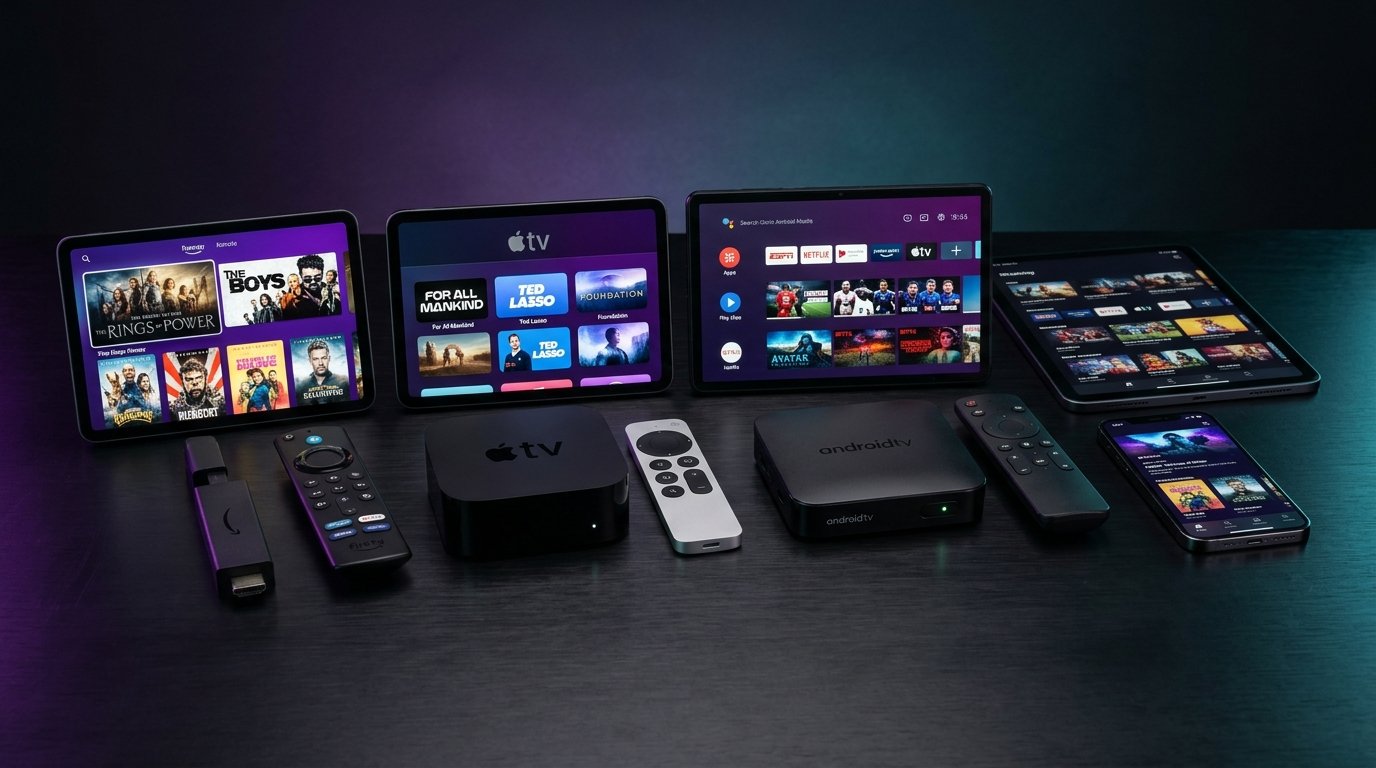
1. Amazon Firestick & Fire TV Installation
Step 1: Install the 'Downloader' app from the Amazon Appstore. In Fire TV Settings > My Fire TV > Developer Options, enable 'Install Unknown Apps' for Downloader.
Step 2: Launch Downloader and enter the URL code for IPTV Smarters Pro or TiviMate. Install the app, choose 'Login with Xtream Codes API', and input your Sonix IPTV Server URL, Username, and Password.
2. Android TV, Google TV & Android Boxes
Open the Google Play Store on your television or box. Search for 'TiviMate IPTV Player' or 'XCIPTV Player' and download the application.
Open the installed application, select 'Add Playlist', choose 'Xtream Codes', and enter your credentials. Once synced, your channels and EPG will load automatically.
3. Apple TV, iPhone & iPad (iOS)
Download 'Smarters Player Lite' or 'GSE Smart IPTV' from the iOS App Store. Enter your server URL and credentials to load the catalog into your Apple device.
4. Samsung (Tizen) & LG (webOS) Smart TVs
Search your TV's content store for 'IBO Player' or 'Smart IPTV'. Note the device MAC Address and Device Key, then upload your Sonix IPTV M3U link via the player's web management portal.